Desktop widgets
Widgets that match your wallpaper.


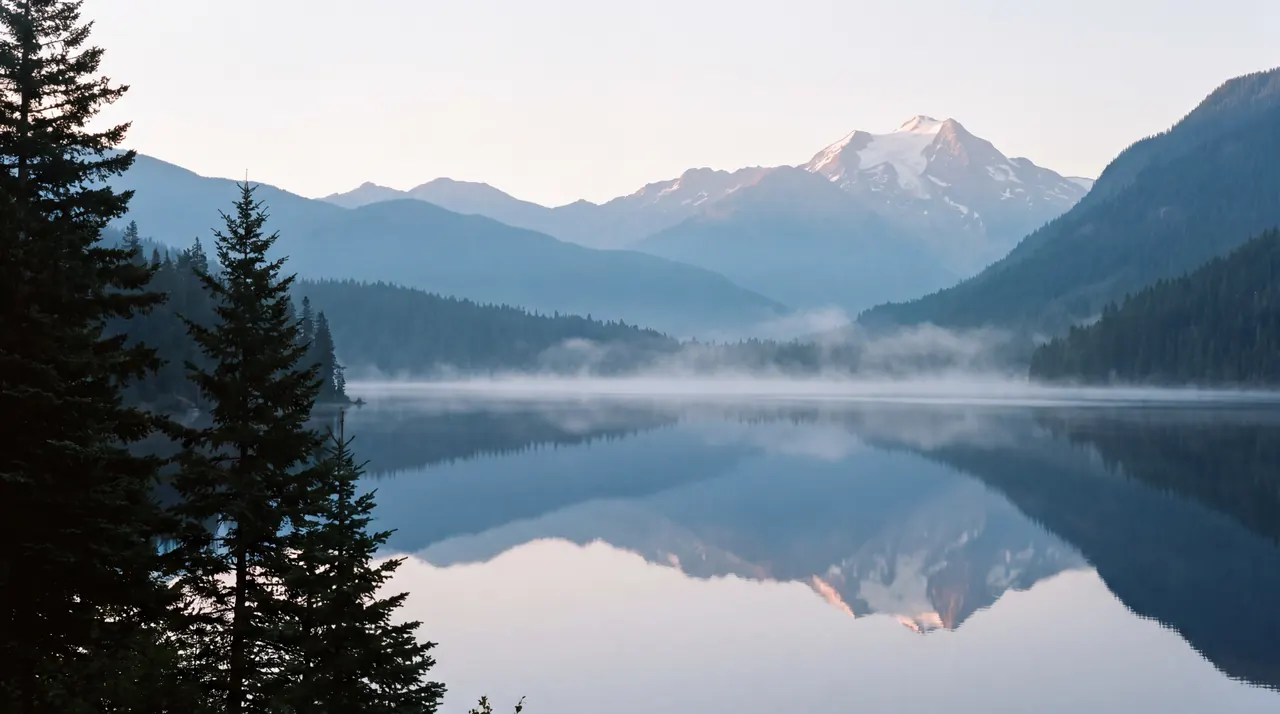
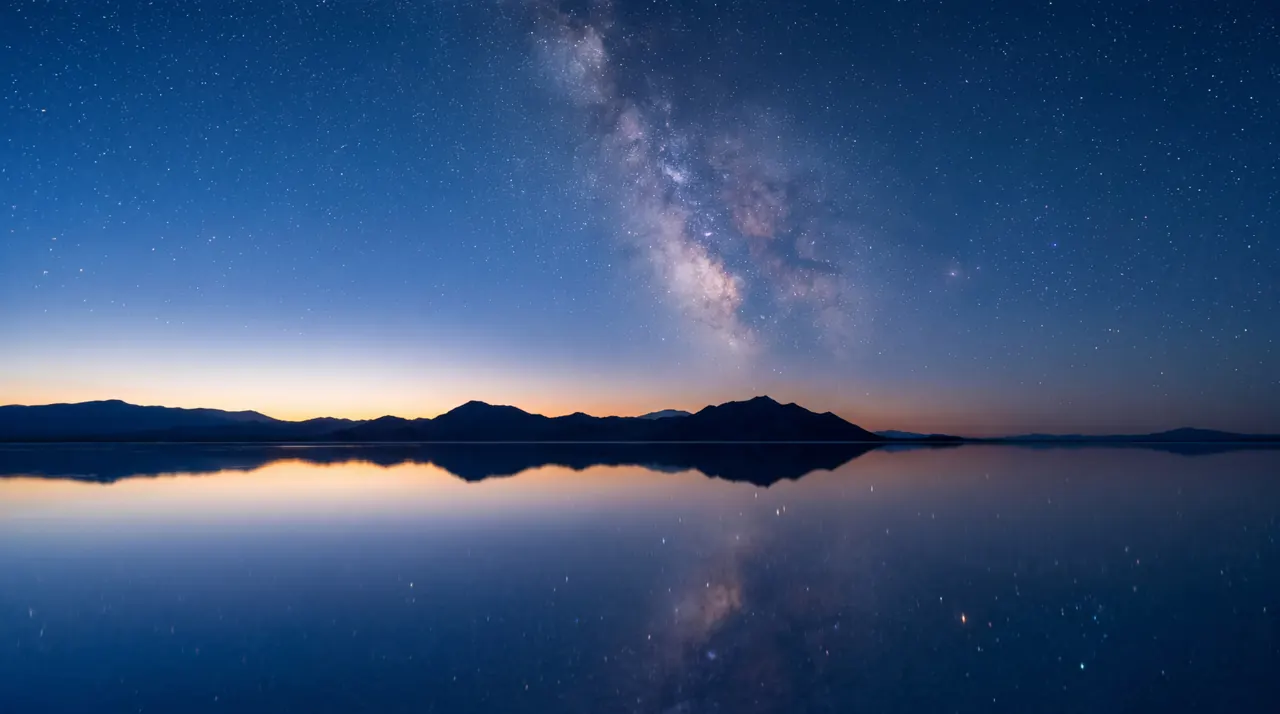

Wednesday, October 7
9:41
Kyoto
18°
Partly Cloudy
H:22° L:14°
Wednesday
7
Studio session
10:00 – 11:30
October
Palette: Kyoto
Colored by the scene behind them
Every widget takes its ink and accent from the palette of whatever is behind it, on that display. Light ink sits on dark scenes and dark ink on light ones, and the accent is the palette’s most vivid color that still reads clearly. The glass material is a real blur of the wallpaper underneath.
Widgets belong to a vibe, so switching vibes, by hand or on a schedule, changes the widgets, their layout and their colors along with the scene. Prefer them neutral? Turn off palette colors and they stay neutral with an orange accent.
Fourteen kinds
- ClockFreeDigital or analog, at any size
- DateFreeToday, set large or small
- DayFreeThe hours of the day, filling in as they pass
- CalendarThis month, or this week as a strip
- WeatherTemperature, conditions, high and low
- Focus Timer25, 50 or 90 minutes, run from the menu bar
- CountdownDays and hours to a date you choose
- YearThe year so far, by month or by day
- BatteryCharge level and whether it's charging
- World ClockAnother city's time, from Honolulu to Auckland
- MoonTonight's phase and days to the full moon
- SeasonThe season where you are, either hemisphere
- NoteA few lines of your own
- SystemCPU and memory, updated every two seconds
The calendar draws the month or the week; it doesn’t read your calendar, so it never asks for access. The battery widget hides itself on Macs without a battery, and the system widget only samples CPU and memory while it’s on screen.
Sizes, shapes and styles
Each widget comes in small, medium and large, on a rounded card, a circle, a pill or no background at all. For the whole vibe, pick a material (glass, tinted, solid or bare), a typeface (grotesk, rounded, serif or mono) and an opacity between 30 and 100 percent.
Arranging them
Choose Arrange from the menu bar and the desktop dims so you can drag widgets into place. They snap to the center lines, to a margin around the edge and to each other, and right-clicking one changes its size and shape or removes it. Drag a widget onto another display to move it there. Press Return when you’re done.
The rest of the time, widgets ignore the pointer and stay under your windows. They’re there when you look at the desktop and out of the way when you don’t.
Alongside the widgets in macOS
macOS has desktop widgets too, supplied by apps, Apple’s included. They’re useful when you want to tap into an app’s data. MacScapes widgets are simpler and made for the wallpaper: they share its palette, change with each vibe, and need no other app. Both kinds can sit on the same desktop.
Questions
Which widgets are free?
Clock, Date and Day, in every size, shape, material and typeface. MacScapes Pro adds the other eleven. A vibe with Pro widgets still works in the free version; those widgets just stay hidden.
Do the widgets cover my windows?
No. They sit on the desktop itself, just above the wallpaper and under Finder's icons, so every app window covers them. They show on every Space.
Can I click them?
Not on the desktop, so they never get in the way of a stray click. To move or resize them, choose Arrange from the menu bar. The focus timer starts and pauses from the menu bar too.
What does the weather widget send, and where?
Only rounded coordinates for your location, to Open-Meteo, a free weather service that needs no account. MacScapes asks for a new forecast every half hour while the widget is in use. The location comes from the schedule settings, your Mac's location if you've allowed it, or an estimate from your time zone.
Read next
- Dynamic wallpaperChange your Mac's whole desktop on a schedule: by the clock, at sunrise or at sunset, with a battery vibe for when you're unplugged. Two rules are free.
- Folder iconsGive your Mac's folders patterned icons in your wallpaper's palette, or cut from a scene. Reset any of them in one click. Eight patterns are free.
- ScenesEvery scene in MacScapes: 42 animated wallpapers drawn live on your Mac, 9 Living Stills, and 48 palettes to recolor them.