Weather
Cherry blossom live wallpaper for Mac
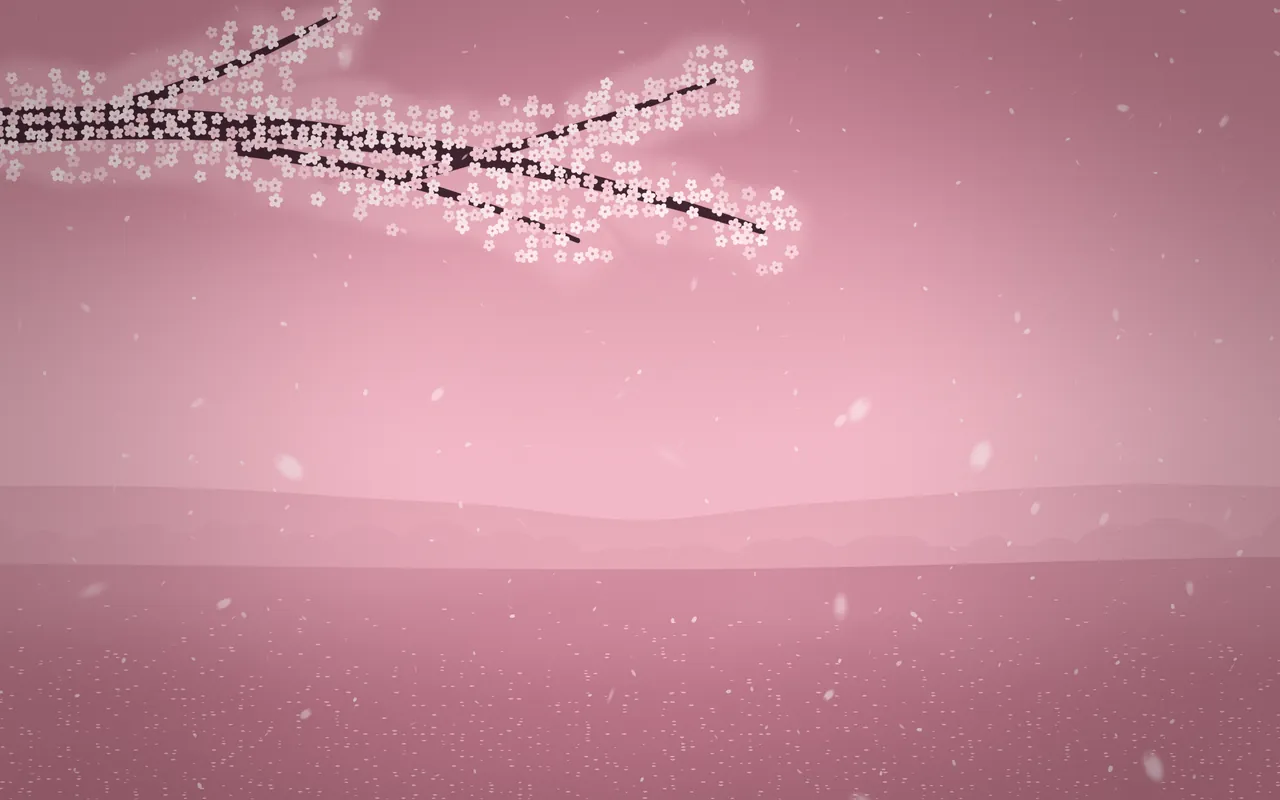
Sakura is a cherry blossom live wallpaper for the Mac: a bough in full bloom reaches in from the top corner while petals drift down over a spring meadow, drawn live by MacScapes.
By Chris at Neon FrenchieUpdated
- In MacScapes
- MacScapes Pro
- Family
- Weather
- Default palette
- Sakura
The bough and the petals
The branch grows in from the upper left, thick at the corner and thinning toward its tips, covered in separate five-petal flowers with a soft mass of bloom behind them. It sways a little about the corner it grows from.
Petals fall in four depths, small and slow in the distance, large, soft and quicker up close. Each one turns as it falls and slowly flips over, narrowing to a sliver and opening again. Behind them, hazy hills and a line of blossoming trees sit beyond a meadow already dusted with fallen petals.
Scale changes the size and speed of the falling petals; the bough stays as it is.
On your desktop
Sakura is a light, high-key scene: the sky, meadow and flowers sit at the pale end of the palette and only the branch is dark. The default Sakura palette gives soft pinks, Blush Fog, Rosé and Peach stay in that range, and on a light palette such as Paper it stays pale with a dark branch.
The bough fills the top left, so widgets sit best on the right or lower down, over the meadow. Wind or Forest suit it if you add ambient sound (Pro).
Settings
Every scene has Speed, Intensity, Scale, Grain and Vignette, and Shuffle for a new variation. Sakura adds its own:
- Petals
- How many petals are falling, from a few to a steady shower.
- Wind
- How far the petals drift sideways as they fall, and how much the bough sways.
How to set it
- Click MacScapes in the menu bar, choose Open MacScapes, then Scenes in the sidebar (or press ⌘2).
- Select Sakura under Weather. The inspector opens with a preview, the palettes and the Adjustments.
- Click Apply to make it the background of the vibe you’re using, or Save as New Vibe to keep it alongside your widgets and sound. Sakura is a Pro scene, so both need MacScapes Pro; the preview and the Adjustments work without it.