Weather
Snow live wallpaper for Mac
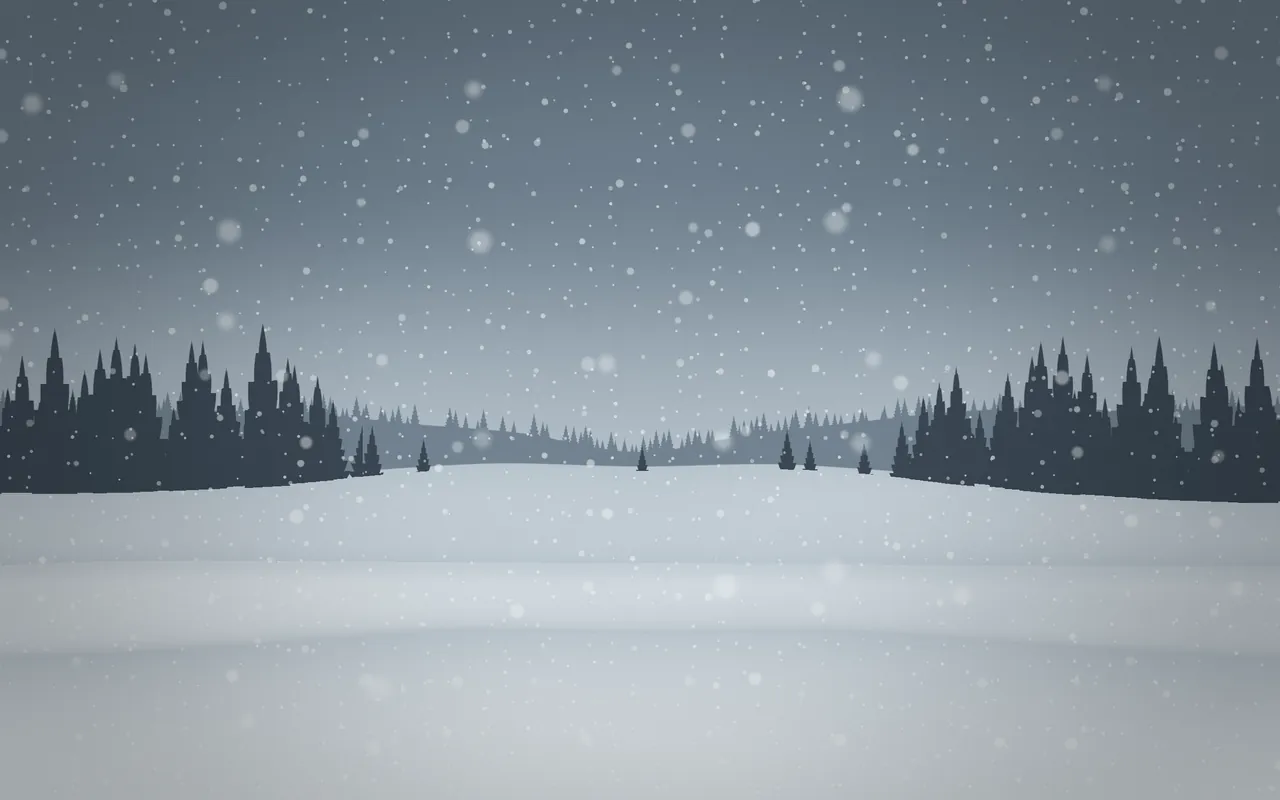
Snow is a winter live wallpaper for the Mac: flakes fall in five layers over a snowy valley with groves of firs, drawn live by MacScapes instead of played from a video.
By Chris at Neon FrenchieUpdated
- In MacScapes
- MacScapes Pro
- Family
- Weather
- Default palette
- Nordic
- Built-in vibe
- First Snow
A quiet valley under an overcast sky
The view opens onto a winter valley. A far ridge with a thin line of trees is almost lost in the haze, a nearer rise carries groves of firs with open ground between them, a long, low drift runs through the middle distance, and a snowbank across the foreground casts a soft shadow on the snow behind it.
The flakes come down in five depths. The farthest are small, sharp and slow, the nearest large, out of focus and quicker, and every flake sways on its own rhythm, so the fall never moves as one sheet. The landscape itself stays still: only the snow is alive.
Scale changes the size and fall speed of the flakes without touching the hills, and Shuffle gives a new arrangement of ridges, groves and flakes.
On your desktop
Snow is a bright scene. The sky and ground sit at the light end of the palette and the firs at the dark end, and the shader keeps that balance on light palettes too. The default Nordic gives a cool gray winter, Paper or Arctic a paler, papery one, and a darker palette such as Midnight or Polar Night a dimmer, bluer evening.
The built-in First Snow vibe pairs it with Nordic and a Calendar widget. There's no snow sound among the app's ten, but Wind, a loop of moving air over open ground, suits it if you want sound with the scene; sound needs Pro too.
Settings
Every scene has Speed, Intensity, Scale, Grain and Vignette, and Shuffle for a new variation. Snow adds its own:
- Snowfall
- How much snow is falling, from a few scattered flakes to a heavy fall that fades the far ridge into the sky.
- Wind
- How far the flakes are pushed sideways and how much they sway, strongest on the nearest layers.
How to set it
- Click MacScapes in the menu bar, choose Open MacScapes, then Scenes in the sidebar (or press ⌘2).
- Select Snow under Weather. The inspector opens with a preview, the palettes and the Adjustments.
- Click Apply to make it the background of the vibe you’re using, or Save as New Vibe to keep it alongside your widgets and sound. Snow is a Pro scene, so both need MacScapes Pro; the preview and the Adjustments work without it.