Atmosphere
Black hole live wallpaper for Mac
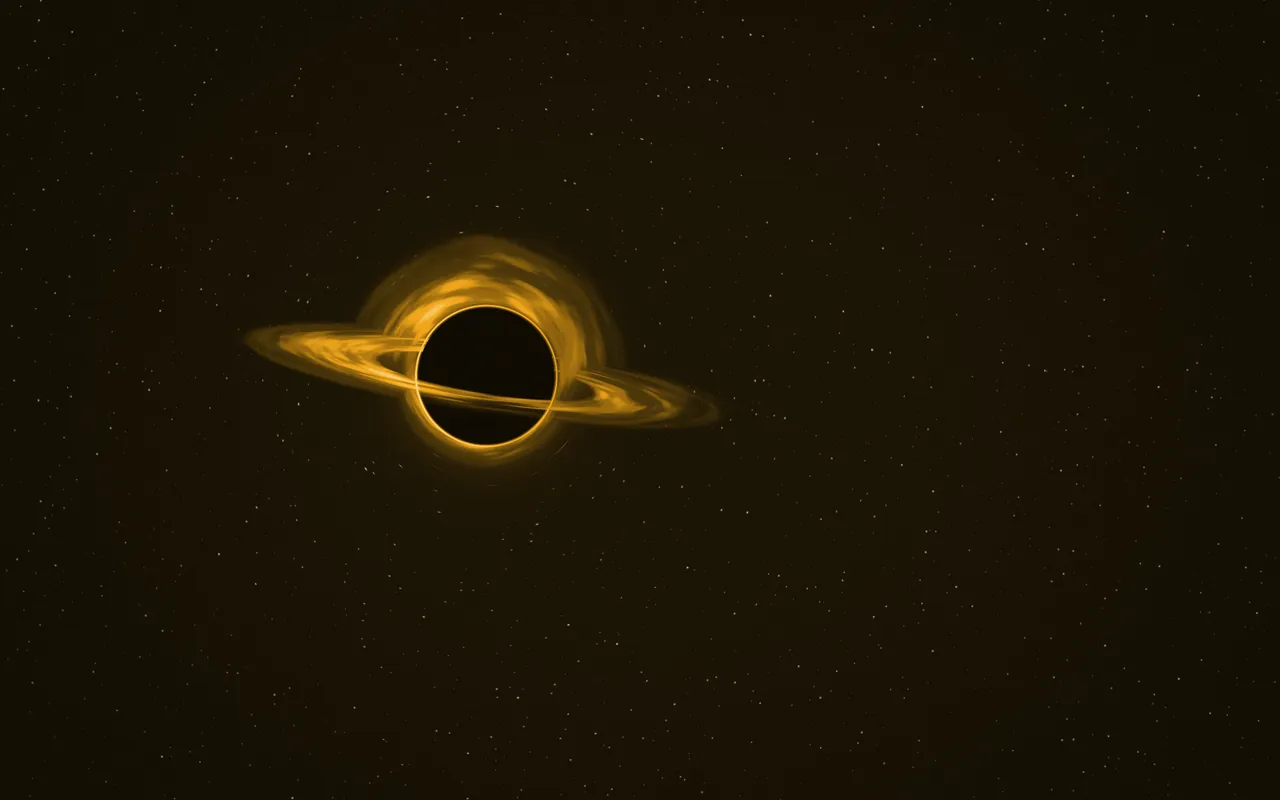
Event Horizon is a black hole live wallpaper for the Mac: a black hole seen nearly edge-on, with a glowing disk wrapped around its shadow and the stars behind it bent aside, drawn live by MacScapes.
By Chris at Neon FrenchieUpdated
- In MacScapes
- MacScapes Pro
- Family
- Atmosphere
- Default palette
- Solar
What it shows
The hole sits a little left of center. Its disk is tilted almost edge-on, so the near half crosses in front of the black shadow while the far half is bent into an arc over the top, with a thinner arc beneath. A thin ring of light hugs the shadow's edge.
The disk turns slowly, about once every two minutes at normal speed, with streaks that spiral inward, and it burns brighter on its left side. The stars behind are pushed outward around the hole, the way gravity bends the light from behind it, and the tilt drifts by a fraction over time.
Scale makes the hole and its disk larger or smaller, and Intensity brightens the disk.
On your desktop
Most of the screen is dark sky with faint stars, and the hole is off to the left, so the right side is open for widgets. The default Solar palette gives a gold disk on brown-black, and Ultraviolet, Midnight or Polar Night make it colder. On a light palette the shadow becomes the palette's darkest ink and the disk is drawn in dark tones on a pale sky.
In the app the scene is called Event Horizon and sits in the Atmosphere family with Nebula and Clouds. If you add sound (Pro), Brown Noise or Pink Noise stays in the background.
Settings
Every scene has Speed, Intensity, Scale, Grain and Vignette, and Shuffle for a new variation. Event Horizon adds its own:
- Disk
- How wide and bright the disk is, from a narrow ring close to the shadow to a broad, bright one.
- Stars
- How many stars shine behind the hole.
How to set it
- Click MacScapes in the menu bar, choose Open MacScapes, then Scenes in the sidebar (or press ⌘2).
- Select Event Horizon under Atmosphere. The inspector opens with a preview, the palettes and the Adjustments.
- Click Apply to make it the background of the vibe you’re using, or Save as New Vibe to keep it alongside your widgets and sound. Event Horizon is a Pro scene, so both need MacScapes Pro; the preview and the Adjustments work without it.