Fluid
Lava lamp live wallpaper for Mac
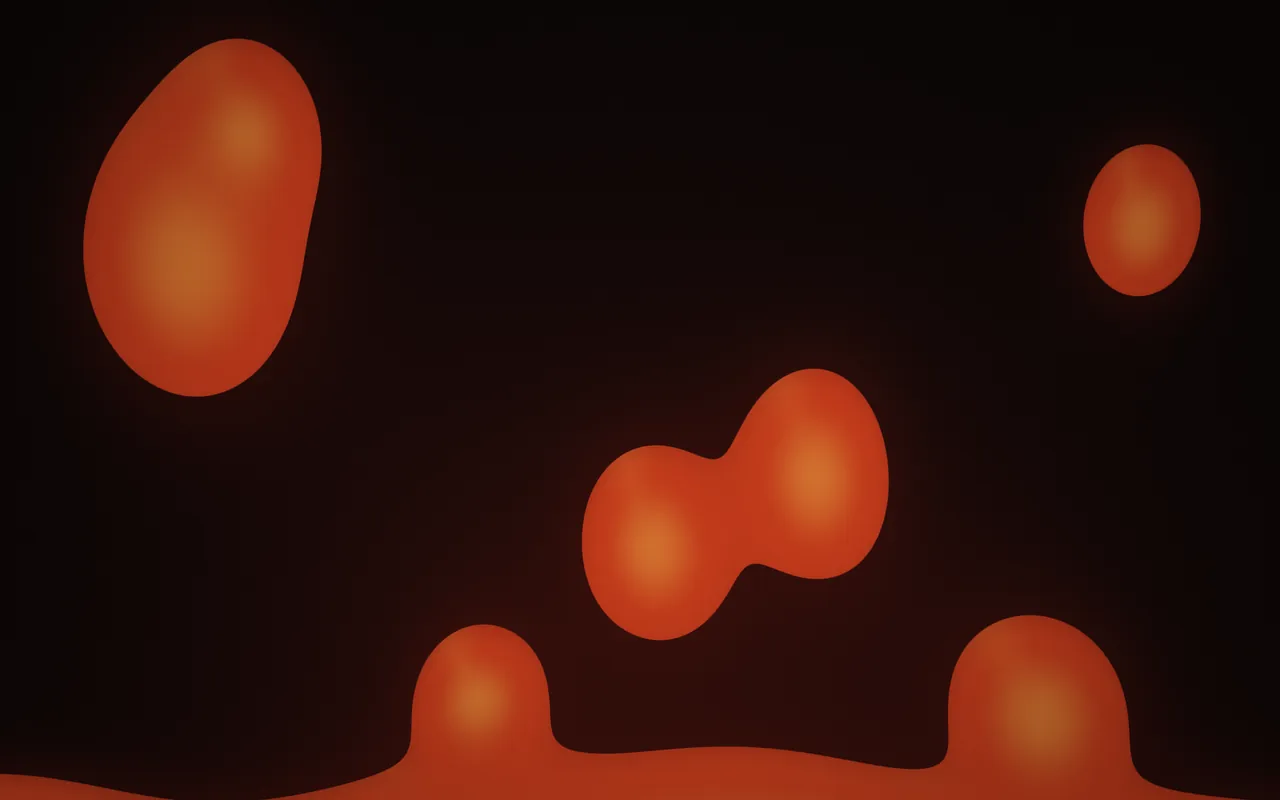
Blobs of glowing wax rise, merge and sink back through a dark lamp at an unhurried pace: Lava is a lava lamp live wallpaper your Mac draws as it plays, in MacScapes.
By Chris at Neon FrenchieUpdated
- In MacScapes
- MacScapes Pro
- Family
- Fluid
- Default palette
- Volcanic
- Built-in vibe
- Campfire
Inside the lamp
The screen is the inside of the lamp: dark glass, warmer toward the bulb at the bottom, where a pool of wax sits with a gently wobbling surface. Blobs leave the pool, rise to the top and sink again, each on its own round trip of 80 to 150 seconds at normal speed, so something is always moving but nothing moves fast.
A blob stretches a little as it travels, and when two pass close they join and pull apart again like real wax. The wax is lit from below and glows brightest where it's thickest, with a soft halo around it and a small highlight. Scale makes all of it larger or smaller.
On your desktop
Lava is mostly dark glass with a few large, soft shapes, so it sits well behind windows and leaves room for widgets anywhere. The default Volcanic palette gives the classic orange on black, and Ember, Neon Tokyo or Ultraviolet change the mood. The scene has its own handling for light palettes: the lamp turns pale and the wax is drawn in the palette's darker tones, lighter where it's thickest.
The built-in vibe called Campfire is this scene, not the Campfire scene: Lava in the Ember palette, slowed to 0.7 speed, with the Fire sound. For focus, Brown Noise suits it too, with Pro.
Settings
Every scene has Speed, Intensity, Scale, Grain and Vignette, and Shuffle for a new variation. Lava adds its own:
- Blobs
- How many blobs are in the lamp, from four to ten on a 16:10 screen and more on an ultrawide; the more there are, the smaller each one.
- Glow
- How brightly the wax glows from inside and how strong the halo around it is.
How to set it
- Click MacScapes in the menu bar, choose Open MacScapes, then Scenes in the sidebar (or press ⌘2).
- Select Lava under Fluid. The inspector opens with a preview, the palettes and the Adjustments.
- Click Apply to make it the background of the vibe you’re using, or Save as New Vibe to keep it alongside your widgets and sound. Lava is a Pro scene, so both need MacScapes Pro; the preview and the Adjustments work without it.